
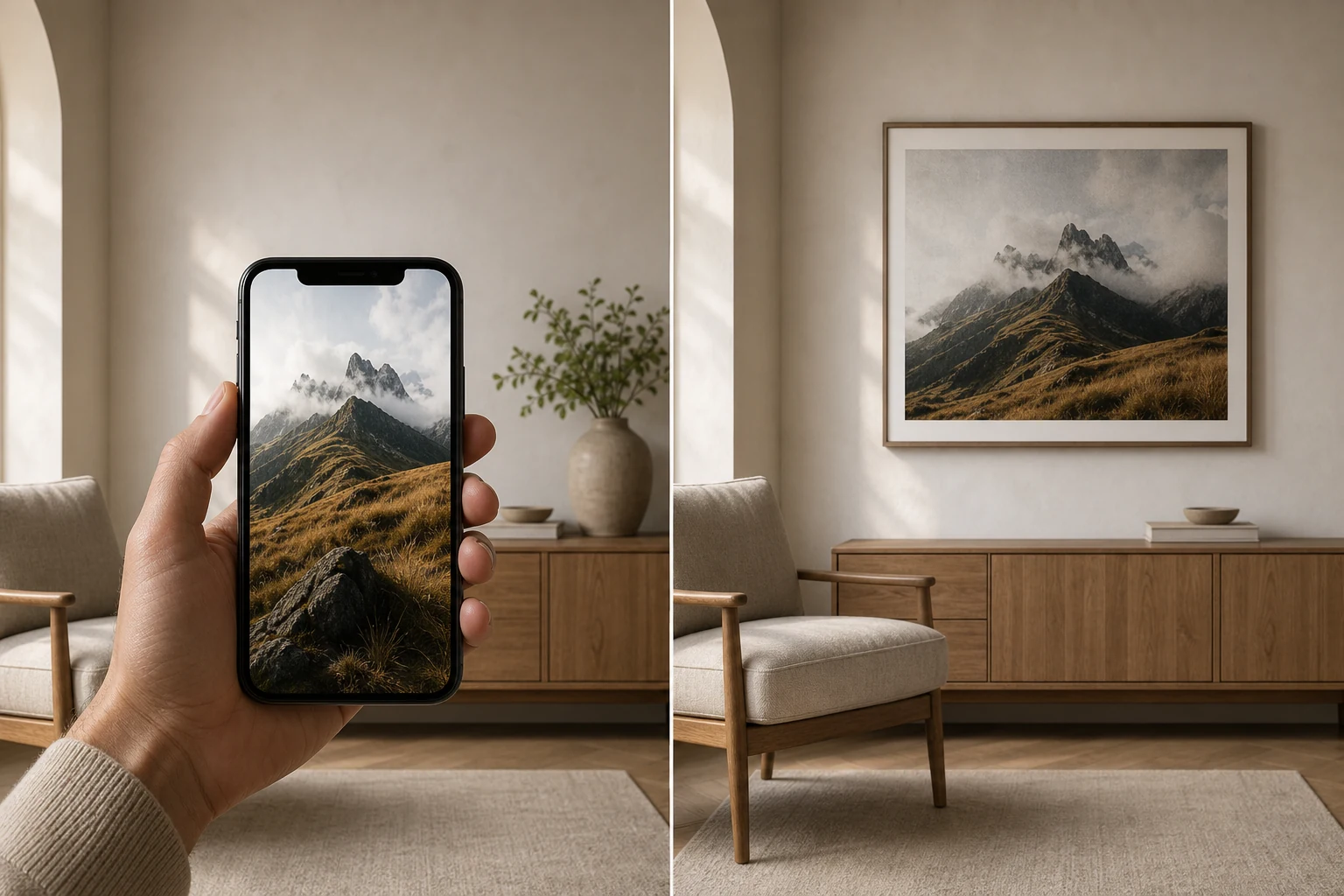
Have you ever looked at a photo on your smartphone, thought it looked perfect, and then felt disappointed when you saw the same image printed as wall art? The picture may have looked clear and detailed on your screen, but once it was enlarged onto a canvas, the faces appeared soft, the edges looked blurry, or small details seemed to disappear.
This is a common problem when turning digital photos into wall art. It can happen with pictures taken on expensive smartphones, images downloaded from social media, and even photographs that look perfectly fine when viewed on a computer.
The main reason is that a smartphone screen and a large canvas print display images in very different ways. A small screen can make an image appear sharp even when the original file does not contain enough detail for a large print.
Understanding image resolution, pixel dimensions, screen size, compression, and print dimensions can help you avoid disappointing results. With a few simple checks, you can choose the right photo and print size to create wall art that looks clear, attractive, and full of detail.
Table of Contents
Why Photos Look Different on a Smartphone and a Canvas Print
A smartphone displays an image using tiny electronic pixels. When you look at a photo on your phone, the screen fits the image into a relatively small viewing area. Your eyes see the overall picture rather than examining every individual pixel.
A canvas print works differently. Instead of displaying light through a screen, it uses ink applied to a physical surface. When a digital image is printed at a much larger size, the available image information must cover a greater area.
If the original photograph contains enough detail, the printed image can look sharp and natural. However, if the file is small or has already lost information through compression or cropping, enlarging it makes those limitations easier to see.
For example, a family photograph might look beautiful on a six-inch smartphone screen. When the same photograph is printed on a 30-by-40-inch canvas, the faces and background objects occupy much more physical space. Any missing detail becomes more noticeable.
This does not necessarily mean the camera took a bad photograph. The image may simply be unsuitable for the particular print size.
Understanding Image Resolution and Pixel Dimensions
Image resolution is one of the most important factors when preparing a photograph for wall art. However, people often confuse image resolution with image quality, file size, and the resolution of their smartphone screen.
These terms are connected, but they do not mean the same thing.
What Are Pixels?
Pixels are the tiny building blocks that make up a digital image. Every digital photograph consists of a grid of pixels, with each pixel containing color and brightness information.
A photograph with more pixels can generally preserve more visual detail, provided the original image is properly focused and has not lost significant information.
For example, consider two digital photographs:
| Image | Pixel dimensions | Total pixels |
|---|---|---|
| Photo A | 1,200 × 800 | 0.96 megapixels |
| Photo B | 4,000 × 3,000 | 12 megapixels |
Photo B contains considerably more pixel information than Photo A. This gives it more flexibility when printing at larger dimensions.
If both images are displayed at a small size on a smartphone, they might look almost identical. But when enlarged for a large canvas, Photo B has more original information available to reproduce fine details.
This is why checking the actual pixel dimensions of a photograph is more useful than simply looking at how attractive it appears on your phone.
What Does DPI or PPI Mean?
Two terms commonly appear when discussing photo printing: DPI and PPI.
PPI stands for pixels per inch. It describes how many image pixels are placed into each inch of the printed image.
DPI stands for dots per inch. It generally refers to the physical ink dots a printer places on paper or another printing surface.
Although people often use these terms interchangeably, they describe different things.
For choosing a photograph for canvas wall art, PPI is usually the more useful measurement because it connects the digital image’s pixel dimensions to the physical print size.
A photograph printed at 300 PPI can preserve very fine detail when viewed closely. However, a large canvas displayed on a wall may look attractive at a lower PPI because people usually view it from farther away.
The important point is that a resolution number alone does not determine image quality. The original detail, print size, viewing distance, and condition of the image all matter.
How Print Size Affects Image Quality
One of the biggest mistakes people make is choosing a large canvas without checking whether their photograph has enough pixels.
When a small digital image is enlarged, the printing process must spread the available pixels across a larger physical area. This means fewer original pixels are available for each inch of the finished canvas.
The following table shows how the same image resolution changes when printed at different sizes.
| Image dimensions | Print size | Approximate PPI |
|---|---|---|
| 3,000 × 2,000 pixels | 10 × 6.7 inches | 300 |
| 3,000 × 2,000 pixels | 20 × 13.3 inches | 150 |
| 3,000 × 2,000 pixels | 30 × 20 inches | 100 |
| 3,000 × 2,000 pixels | 40 × 26.7 inches | 75 |
These examples assume the original image is printed at the same aspect ratio without cropping.
As the print becomes larger, the effective PPI decreases. The image may still look good on a wall, but fine details can become less defined when viewed up close.
For instance, a photograph with 3,000 pixels across its width has approximately 150 pixels per inch when printed 20 inches wide. If printed 40 inches wide, it has only 75 pixels per inch.
This explains why a photograph that looks crisp on a small canvas might appear softer when printed as a much larger piece of wall art.
Choosing a Canvas Size That Matches Your Photo
There is no single print size that works for every photograph. A sharp, well-lit image with plenty of original detail can often be enlarged more successfully than a blurry photograph with the same pixel dimensions.
As a practical starting point, many people use 150–300 PPI as a useful range when planning prints, depending on the image, the printing process, and the intended viewing distance.
A 12-megapixel photograph, for example, may work well for a medium or large canvas, especially when viewed from a normal room distance. A much smaller image downloaded from a website may be better suited to a smaller print.
Before ordering, compare the image dimensions with the intended canvas size and check any image-quality guidance provided by the printing service.
Why Screen Size and Pixel Density Can Be Misleading
Smartphone screens are designed to make images look clear and attractive within a compact display.
Most modern smartphones have high pixel densities, meaning they fit a large number of screen pixels into a relatively small physical area.
This is measured in PPI, just as image resolution for print can be described in pixels per inch.
However, the PPI of a screen and the effective PPI of a printed photograph are not directly interchangeable. A smartphone can display a photograph using its screen pixels, scaling the image to fit the available space.
For example, a 4,000-pixel-wide photograph may be displayed across only 400 screen pixels. The phone can reduce the image while preserving its overall appearance.
Your eyes see a smaller, visually smooth version of the image rather than all 4,000 pixels individually.
When that same photograph is enlarged onto a canvas, the printer must reproduce the available image information across a much wider physical surface.
A photo that looks detailed on a smartphone may therefore reveal softness, jagged edges, or a lack of texture when printed.
The difference becomes especially noticeable in photographs containing small text, hair, fine fabric patterns, tree branches, or distant buildings.
How Compression Can Make Your Canvas Print Look Blurry
Compression is another reason why digital photographs sometimes lose quality before they reach the printer.
Many websites and apps reduce image file sizes to make photographs quicker to upload, download, and share. This process can remove image information, particularly when a photograph is saved repeatedly in a lossy format such as JPEG.
JPEG compression is not automatically a problem. It is widely used and can produce excellent photographs at suitable quality settings.
The difficulty arises when an image is compressed too heavily or repeatedly.
Social Media Photos and Messaging Apps
Imagine taking a high-resolution photograph with your smartphone and sending it through a messaging app. The app may automatically reduce the image dimensions or compress the file to save data.
The smaller version might look perfectly acceptable when viewed inside a conversation.
However, it may not contain enough detail for a large canvas print.
The same issue can occur when downloading photographs from social media platforms, websites, or image-sharing services. The version available online may be smaller or more compressed than the original image.
For this reason, always use the highest-resolution original file available.
If you took the photograph yourself, check your phone’s original photo library or cloud backup. If someone shared the photograph with you, ask them to send the original file rather than a screenshot or compressed preview.
Avoid using screenshots of photographs whenever possible, as they may capture only the displayed version rather than the full original image.
How Cropping Can Reduce Print Quality
Cropping allows you to remove unwanted parts of a photograph, improve its composition, and focus attention on the main subject.
It is particularly useful when preparing a picture for a canvas with a specific shape or aspect ratio.
However, excessive cropping can reduce image resolution.
When you crop a photograph, you remove pixels from the original image. The remaining section contains fewer pixels than the full photograph.
For example, suppose your original image measures 4,000 × 3,000 pixels. It contains 12 million pixels.
If you crop it down to 2,000 × 1,500 pixels, the remaining image contains just 3 million pixels.
That is a significant reduction in available detail.
The cropped photograph might still look sharp on your phone because it is displayed at a small size. But when enlarged to fill a large canvas, the missing pixels can become more noticeable.
Match the Photo’s Shape to the Canvas
Canvas prints come in different proportions, such as square, landscape, and portrait formats.
If your photograph has a different aspect ratio from the canvas, some cropping may be necessary to fill the entire surface.
For example, a square photograph may not fit a wide rectangular canvas without leaving empty space or cutting off parts of the image.
Before ordering, check which areas of the photograph will remain visible after cropping.
Try to keep important subjects, such as faces, near the center of the composition and away from the edges. This is especially important because some canvas printing processes wrap the image around the sides of the wooden frame.
Choosing a canvas size that closely matches the original photograph’s proportions can help preserve more of the image and reduce unnecessary cropping.
Why Viewing Distance Matters for Canvas Wall Art
A photograph does not need the same level of detail for every viewing situation.
Think about how you normally look at wall art. A canvas hanging above a sofa is usually viewed from several feet away, while a photograph held in your hands may be examined from just a few inches away.
The farther away you stand, the less noticeable individual pixels and minor softness become.
This is why a large canvas with a moderate effective resolution can still look attractive in a living room, hallway, or bedroom.
At a normal viewing distance, your eyes combine the visual information into a complete image. Small imperfections that are obvious when standing close may become much less noticeable across the room.
However, viewing distance should not be used as an excuse to print an extremely low-resolution photograph at any size.
A severely pixelated image can still look poor from a distance, especially when the subject contains important facial details or strong edges.
For the most satisfying result, choose an image that has enough detail for the intended print size and the distance from which people will normally view it.
How to Check Whether Your Photo Is Suitable for Printing
You do not need professional photography software or technical knowledge to make a reasonable assessment of a photograph before ordering canvas wall art.
A few basic checks can help you avoid common mistakes.
Use this checklist before uploading your image:
- Check the original pixel dimensions. Open the image details on your phone or computer and look for its width and height in pixels.
- Find the original file. Use the full-resolution photograph rather than a screenshot, social media download, or compressed messaging-app copy.
- Examine the image at a larger size. Zoom in on faces, eyes, hair, and other important details to check whether the original photograph is already blurry.
- Check the crop. Make sure the photograph will still have enough pixels after removing unwanted areas to fit the selected canvas dimensions.
- Compare the aspect ratio. Choose a print size that matches the shape of your photograph as closely as possible.
- Review the printing service’s upload preview. If the service provides an image-quality warning, pay attention to it before completing your order.
It is also worth remembering that increasing the resolution of an image in an editing program does not automatically restore the original detail.
Some tools use artificial intelligence to estimate missing information and improve the appearance of low-resolution images. These tools can sometimes produce useful results, but they cannot guarantee a perfect reconstruction of details that were never captured.
Starting with a sharp, high-resolution original remains the most reliable approach.
Tips for Getting Better Results From Canvas Prints
Once you have selected a suitable photograph, a few additional decisions can help you get more from your wall art.
Start With the Highest-Resolution Original
Whenever possible, use the original photograph straight from your camera or smartphone.
Avoid repeatedly saving, resizing, or exporting the image through different apps before uploading it.
If the photograph is stored in a cloud service, make sure you download the full-resolution version rather than a small preview.
Choose a Realistic Print Size
Do not automatically select the largest canvas available.
Consider the available image dimensions, how much cropping is required, and where the finished canvas will hang.
A slightly smaller canvas with clear details may be more suitable than a very large print that reveals noticeable pixelation.
Avoid Unnecessary Editing
Excessive sharpening, filters, and repeated compression can affect the final appearance of a photograph.
If you edit your image, keep an untouched copy of the original. Use moderate adjustments and avoid saving multiple low-quality versions.
Pay Attention to the Printing Material
Image quality is not only about pixels. The printing surface and construction also contribute to the appearance of the finished product.
Canvas has a textured surface, unlike a smooth smartphone screen. This texture gives wall art a distinctive appearance, but it can make extremely fine details look different from how they appear on a digital display.
When shopping for high quality canvas prints , consider the canvas material, frame construction, available sizes, and the quality of the original photograph you plan to use.
CanvasDiscount is a US-based option for turning digital photos into personalized wall art. Its canvas prints are produced in the USA using 100% polyester canvas stretched over a wooden frame.
This combination gives customers a way to display personal photographs as physical wall decor while choosing a format that suits their space.
Whether you are printing family portraits, vacation photographs, wedding pictures, or landscape photography, preparing the image properly before placing an order can make a meaningful difference to the final result.
You can visit CANVASDISCOUNT to explore its canvas printing options and consider which format and dimensions suit your photograph.
Common Mistakes to Avoid When Printing Photos
Even a good photograph can produce disappointing results if a few basic details are overlooked.
Here are some common mistakes to watch for:
| Mistake | Why it causes problems | What to do instead |
|---|---|---|
| Printing a small image at a very large size | The available pixels become spread across a larger area. | Choose a smaller print or use a higher-resolution original. |
| Downloading an image from social media | The downloaded file may be compressed or resized. | Use the original photo whenever possible. |
| Cropping too much | Cropping removes pixels and reduces the remaining image dimensions. | Select a suitable canvas ratio before cropping. |
| Ignoring the image-quality warning | The printing service may be indicating that the image is too small for the selected size. | Review the dimensions and consider a smaller canvas. |
| Expecting a screen to show exactly how a print will look | Screens and printed materials reproduce images differently. | Consider the print surface, lighting, and normal viewing distance. |
Taking a few minutes to review these details can help prevent unnecessary disappointment and make it easier to choose a print size that suits your image.
Frequently Asked Questions
Why does my photo look blurry when printed but clear on my phone?
A smartphone displays photographs at a relatively small size and can scale them to fit its screen. When the same photograph is enlarged onto a canvas, its original pixels must cover a much larger area. If the image does not contain enough detail for that size, softness and pixelation become more visible.
What resolution do I need for a large canvas print?
The required resolution depends on the physical print dimensions, the quality of the original photograph, and the intended viewing distance. A larger canvas generally requires more total pixels to maintain the same level of detail. As a practical guide, calculate the effective PPI by dividing the image’s pixel dimensions by the intended print dimensions in inches.
Can I turn a low-resolution photo into a high-quality canvas print?
Sometimes, particularly if the image is only moderately low in resolution and will be viewed from a normal room distance. Image-enhancement tools may also help in certain cases. However, they cannot reliably restore all the detail missing from a heavily compressed, blurry, or very small original photograph. Choosing a smaller print can often produce a more natural result.
Does a higher-megapixel camera always produce better canvas prints?
Not necessarily. More megapixels provide more image information, which can help with large prints, but focus, lighting, lens quality, compression, and image processing also matter. A sharp photograph from a good smartphone can produce a better canvas print than a higher-megapixel photograph that is poorly focused.
Is canvas suitable for family and wedding photographs?
Yes. Canvas is a popular format for displaying family portraits, wedding photographs, travel memories, and other personal images. The key is to select a sharp original photograph, choose a suitable print size, and check the crop before ordering.
Final Thoughts
A photograph that looks sharp on a smartphone can appear blurry or pixelated when printed as wall art because digital screens and physical prints handle image information differently.
The smaller display on a phone can hide limitations in resolution, compression, and cropping. Enlarging the same image onto a canvas makes those limitations easier to see, particularly when the print is viewed up close.
Fortunately, getting better results does not require professional photography skills. By checking your image’s pixel dimensions, using the highest-resolution original file, avoiding excessive cropping, and choosing a realistic canvas size, you can significantly improve your chances of getting a clear and attractive print.
Whether you are creating a family photo display or turning a favorite travel memory into wall art, a little preparation before ordering can help you enjoy your photographs beyond the smartphone screen for years to come.

