
A cellular router can be a lifesaver. It brings internet to a rural cabin, a small shop without cable service, a construction site office, or a rental apartment where installing fixed broadband is not worth the hassle. Plug in a SIM, power it on, and suddenly every laptop, tablet, and smart TV has a connection.
At least, that is the promise. In practice, many people end up with speeds far below what their network should deliver, connections that drop every afternoon, or a router that refuses to connect at all. The frustrating part is that the cause is rarely the network itself. Most problems come down to a few avoidable setup mistakes.
This article walks through the errors that trip up home users, small business owners, and remote workers most often. Each section explains what goes wrong, why it matters, and what to do instead. If your cellular internet feels slower than it should, there is a good chance one of these issues is holding it back, and most of them take only a few minutes to fix.
Table of Contents
Mistake One: Choosing a SIM Without Checking Compatibility
Not every SIM card works well in every router. Mobile networks operate on specific frequency bands, and routers support specific sets of those bands. If the router and the network do not share the bands used in your area, you may connect on a weaker fallback band or not connect at all.
The fix begins before purchase. Look up the bands your router supports in its manual or on the manufacturer’s site, then compare them with the bands your carrier uses locally. Also confirm whether the plan allows use in routers. Some phone plans restrict tethering or router use, and the carrier may throttle or block the connection when it detects that kind of traffic.
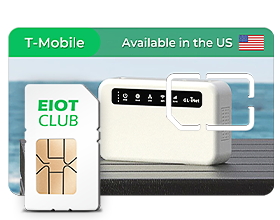
This is why many people pick a dedicated router SIM card rather than moving the SIM from an old phone. Plans built for routers are designed for always-on connections and multiple connected devices, which is a very different usage pattern from a single handset. Providers like Eiotclub organize their options by device type, which makes it easier to match the SIM to the hardware you actually own.
SIM size is a smaller but real detail. Routers may take standard, micro, or nano SIM formats. Many cards now ship as multi-cut, but double-check before you start pressing pieces out of the frame.
Mistake Two: Leaving APN Settings to Chance
The Access Point Name, or APN, tells your router how to reach the carrier’s data network. Many routers detect the APN automatically, but automatic detection is not always accurate, especially with smaller carriers or network operators that rent capacity from larger ones.
When the APN is wrong, symptoms vary. The router might show full signal bars with no internet, connect intermittently, or deliver strangely slow speeds. Before assuming the network is at fault, log into the router’s admin page and compare the APN field with the value your SIM provider lists. Enter it manually if needed, save, and restart the router. Also check the authentication type and IP type fields if your provider specifies them. This one step resolves a large share of “connected but no internet” complaints.
Mistake Three: Putting the Router in the Wrong Spot
People tend to place routers where it is convenient: behind the TV, inside a cabinet, or on the floor near a power outlet. For a cellular router, placement is everything. It needs a clear path to the nearest cell tower, and walls, metal, and even large appliances can weaken the signal significantly.
Find the Strongest Signal in Your Space
Move the router to different spots and check the signal readings in its admin panel. Look beyond the bar icon. Values such as RSRP and SINR give a much clearer picture of signal strength and quality. Windows facing the direction of the nearest tower usually perform best, and higher floors tend to beat basements. Even a shift of a meter or two can change speeds noticeably.
Consider External Antennas
If your router has antenna ports and you live far from a tower, an external antenna mounted near a window or outside can make a dramatic difference. Directional antennas work best when pointed toward a known tower, while omnidirectional ones are simpler for areas with several towers nearby. Keep cable runs short, since long cables lose signal along the way.
Mistake Four: Picking the Wrong Data Plan for Your Usage
A plan that works fine for a phone can fall short for a household router. Streaming video on a smart TV, backing up photos to the cloud, running video calls, and automatic software updates on several devices can use far more data than people expect.
Start by estimating what your household or office actually consumes. If you are moving from fixed broadband, your old provider’s account page may show monthly usage. Pay attention to how a plan handles heavy use as well. Some plans slow speeds after a certain amount of data, and others apply lower priority during busy periods. Knowing these terms in advance prevents the unpleasant surprise of a crawling connection in the last week of the month.
You can also cut data use without changing plans. Lower the default streaming quality on TVs, schedule large updates overnight, and turn off automatic cloud backup for devices that do not need it.
Mistake Five: Ignoring Firmware and Network Mode Settings
Router firmware updates often include better modem drivers, improved band handling, and security fixes. Many people never update after the first setup, which can leave performance on the table and expose the network to known vulnerabilities.
Network mode settings deserve a look too. Some routers let you choose between automatic mode and forcing a specific generation such as 4G or 5G. Automatic mode is usually best, but in areas where a weak 5G signal keeps pulling the router away from a strong 4G signal, locking the mode can deliver a steadier connection. Test both options at different times of day before deciding.
Mistake Six: Overlooking Wi-Fi as the Real Bottleneck
Sometimes the cellular side is working perfectly and the slowdown happens inside your home or office. A router that pulls a strong mobile signal can still deliver weak Wi-Fi to a back bedroom or a warehouse corner. People often blame the SIM or the network when the real limit is the wireless link between the router and their laptop.
Start by checking which Wi-Fi band your devices use. The 5 GHz band is faster but covers shorter distances, while 2.4 GHz reaches farther but slows down in crowded areas with many nearby networks. If your router lets you split the bands under different names, connect nearby devices to 5 GHz and distant ones to 2.4 GHz. Changing the Wi-Fi channel can also help in apartment buildings where dozens of networks overlap.
Remember that the best spot for cellular reception is not always the best spot for Wi-Fi coverage. If the window that gives you strong mobile signal sits at one end of the building, a mesh system or a simple access point connected by cable can carry the connection to the rest of the space. That way you keep the strong cellular signal and still get usable Wi-Fi everywhere you need it.
Mistake Seven: Skipping Basic Security
Security settings rarely affect speed directly, but an unsecured router can quietly eat into your data and bandwidth. Neighbors or passersby who join an open network use your allowance, and a router still running its default admin password is an easy target.
Change the admin password on the router’s management page, not just the Wi-Fi password. Use WPA2 or WPA3 encryption and a long passphrase. Turn off features you do not use, such as remote management or WPS, and check the connected devices list now and then for anything you do not recognize. These small steps protect both your data allowance and your privacy.
A Quick Troubleshooting Routine
When speeds drop, a consistent routine helps you find the cause faster than random guessing. Work through these checks in order, since each step rules out a common cause before moving to the next.
- Restart the router and wait a few minutes for it to reconnect fully.
- Check signal quality values in the admin panel and compare with your usual readings.
- Confirm that the APN and network mode settings have not changed.
- Review your data usage to see whether you have reached a speed threshold.
- Run a speed test with a single device connected by cable, if possible, to rule out Wi-Fi issues.
If everything looks normal on your side and speeds are still poor, contact your SIM provider with the signal readings and speed test results in hand. That information helps support teams identify network congestion or local outages much faster.
Getting the Most From Cellular Router Internet
Cellular routers can deliver fast, dependable internet in places where fixed lines are unavailable or impractical. When they underperform, the cause usually sits within your control rather than with the network. A SIM and plan that match your router and usage, correct APN settings, smart placement, and up-to-date firmware together solve the majority of speed and stability problems.
Treat setup as a short project rather than a plug-and-go moment. Spend a little time checking compatibility, testing router positions, and reviewing plan terms. Keep a note of your normal signal readings so you can spot changes quickly. With these habits in place, your cellular connection can feel just as dependable as a traditional broadband line, and you will spend far less time staring at a loading screen.
