
Creating YouTube videos no longer requires expensive equipment, advanced editing skills, or a large production team. With AI tools, beginners can generate scripts, create visuals, produce voiceovers, and edit videos using a computer and an internet connection. The challenge is finding tools that offer useful free features without running into restrictive credits, watermarks, or export limits.
1. MagicLight.AI: Turn Ideas into Videos
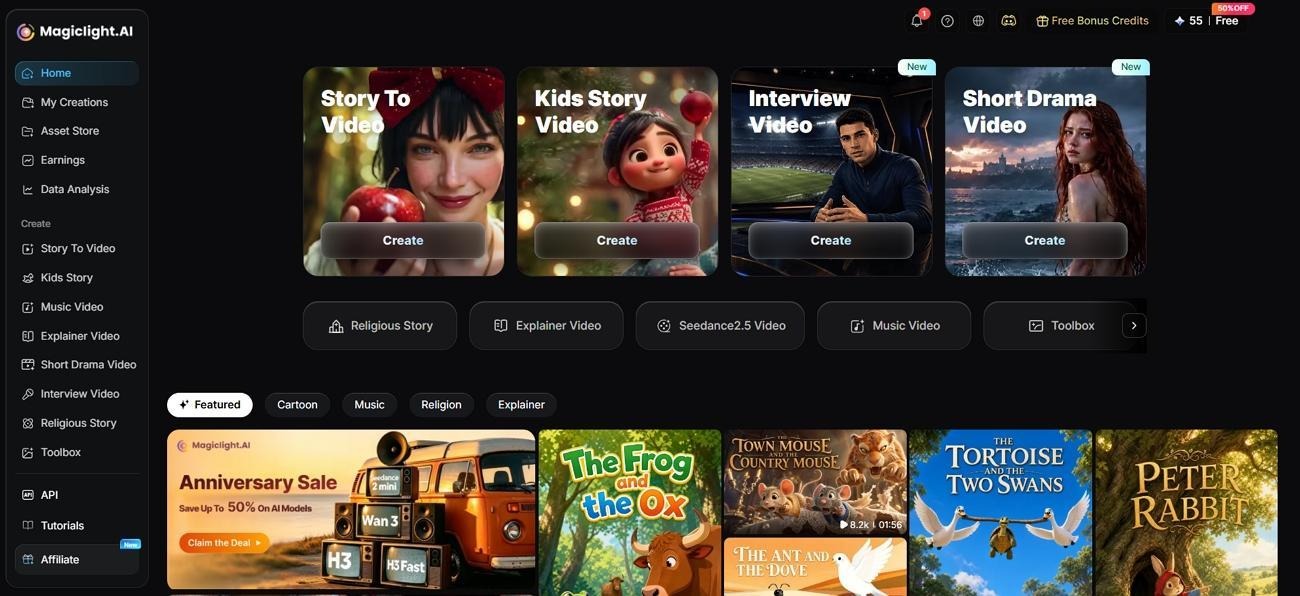
MagicLight.AI is an AI video creation platform designed to help users turn ideas and scripts into visual stories. It can be useful for creators who want to produce animated storytelling videos, educational content, or narrative-driven YouTube videos without creating every scene manually.
Table of Contents
From Idea to Script, Storyboard, and Video
MagicLight Agent helps with several stages of video production, including scriptwriting, storyboard generation, character setup, visual style selection, production planning, and video generation. It supports different content formats, including story videos, short dramas, children’s stories, religious stories, explainers, and interviews. This makes it useful for creators who want to build a storytelling channel or publish videos around a consistent theme.
What about free access? Check the current plan and account interface before starting a project. Free access, generation credits, export options, and commercial-use permissions may be limited or change over time. Don’t assume every feature is available without payment.
2. Use Free AI Tools for Scripts and Ideas
Before generating visuals, prepare a clear script. A strong script helps your video stay focused and gives viewers a reason to keep watching.
General-purpose AI assistants can help brainstorm topics, organize research, write outlines, and draft narration. Many offer free access with usage limits. Always review the result. Check facts, add your own perspective, and make sure the script sounds natural when read aloud.
3. Create Visuals with Free or Freemium AI Tools
Your visuals depend on the type of channel you’re building. Tutorials may need screen recordings, while storytelling videos may need illustrations or generated scenes.
Consider these options:
- Canva: Useful for thumbnails, title cards, presentations, and simple video layouts. Free features are available, while some assets and AI functions may require a paid plan.
- CapCut: Offers video editing, captions, and selected AI-assisted features. Availability and free limits can vary by region and version.
- AI image generators: Some provide limited free generations for illustrations, backgrounds, and scene references. Check usage rights before publishing.
- MagicLight.AI: Worth considering when you want to develop an idea into an animated, story-based video.
The best approach is to choose one primary video creation tool and add other tools only when necessary. Using too many platforms can make production slower rather than easier.
4. Generate Voiceovers Without Recording Yourself
You don’t need a microphone or recording studio to start a YouTube channel. Text-to-speech tools can turn your script into narration, and some offer free usage allowances.
When choosing a voice tool, consider:
- Whether the voice sounds natural.
- Whether you can adjust speed and pronunciation.
- Whether the free plan limits characters or downloads.
- Whether commercial use is permitted.
Some video editors also include built-in text-to-speech features. Using one platform for both editing and narration may simplify your workflow.
5. Edit Your Video Using Free Software
Once you have your script, visuals, and narration, assemble them into a coherent video.
Free editing software can handle many essential tasks, including trimming clips, adding subtitles, adjusting audio, and inserting transitions.
A straightforward editing process looks like this:
- Import your generated scenes and voiceover.
- Arrange clips to match the script.
- Remove pauses and unnecessary footage.
- Add captions and background music where appropriate.
- Check audio levels and visual consistency.
- Export the video using YouTube-compatible settings.
Avoid excessive transitions and effects. Clear narration, readable captions, and a logical sequence are usually more important than complicated editing.
6. Make a YouTube Thumbnail and Optimize Your Upload
Your video is only one part of a successful YouTube upload. The title, thumbnail, and description help viewers understand what the video offers.
You can use a free design tool such as Canva to create a thumbnail. Aim for a clear subject, strong contrast, and a small amount of readable text.
For the upload itself:
- Title: Describe the video’s main benefit and use your target keyword naturally.
- Description: Summarize the video and include relevant search phrases without keyword stuffing.
- Thumbnail: Make the subject understandable at a small size.
- Captions: Review automatically generated subtitles for errors.
- Audience settings: Set the appropriate audience classification and follow YouTube’s disclosure rules where applicable.
AI can help draft metadata, but your final choices should accurately represent the video. Misleading titles and thumbnails may disappoint viewers and damage audience trust.
A Simple Free AI Video Workflow
For beginners, a manageable process is more valuable than using every available AI tool.
| Production Stage | Tool Option | Main Task |
| Script | Free AI assistant | Draft and refine narration |
| Video creation | MagicLight.AI | Develop animated story videos |
| Graphics | Canva | Design thumbnails and title cards |
| Voiceover | Free text-to-speech option | Generate narration |
| Editing | CapCut or another free editor | Assemble and polish clips |
| Publishing | YouTube Studio | Upload and review performance |
You don’t need every tool on this list. For example, if your primary video platform already provides narration and scene creation, you may only need an editor for final adjustments.
Can You Really Create YouTube Videos for Free?
Yes, you can start a YouTube video workflow with free tools, but completely unlimited AI production is harder to achieve.
Freemium platforms may restrict generation credits, video length, resolution, export quality, watermark removal, or commercial-use rights. Some features advertised as AI-powered may only be available on paid plans.
To avoid unexpected costs:
- Check the free plan before creating a long video.
- Test a short sample before generating multiple scenes.
- Save your scripts and project files.
- Use free editing software for tasks that don’t require paid AI features.
- Upgrade only when a specific limitation regularly affects your workflow.
You can also reduce generation costs by writing a complete script before producing visuals. Planning scenes in advance helps prevent wasted credits on unnecessary revisions.
Conclusion
Creating YouTube videos with AI for free in 2026 is possible when you choose tools carefully and keep your workflow simple. Start with a clear script, use AI to create suitable visuals, add narration, and finish the video with a free editor. MagicLight.AI is a useful option for creators focused on animated storytelling, while tools such as Canva and CapCut can help with graphics and editing. However, always verify free-plan restrictions, export conditions, and commercial-use permissions before publishing.
Frequently Asked Questions
1. Can I create YouTube videos with AI for free?
Yes. Free and freemium tools can help with scripting, visuals, voiceovers, and editing. However, generation limits, watermarks, and export restrictions may apply.
2. Can I monetize AI-generated YouTube videos?
Potentially. AI-generated videos may be eligible for monetization if they meet YouTube’s applicable monetization policies. Original value, meaningful contribution, rights to the content, and any required AI disclosures matter. Mass-produced or repetitive content may not qualify.
3. What is the easiest AI video workflow for beginners?
Start with an AI-assisted script, create visuals with one video tool, add narration, and use a free editor for final adjustments. Keep the first project short so you can learn the process without wasting credits.
4. Do I need to disclose AI-generated content on YouTube?
Some realistic altered or synthetic content requires disclosure under YouTube’s rules. Check the current policy and use the relevant disclosure setting when applicable.

