
Faxing may not be a cutting-edge technology but, they are a lot more popular than you think. Even now, billions of faxes are sent every year to different institutions and government agencies.
Although the popularity of fax has still stayed, the method these days are much easier. You don’t need to have a landline connection to send faxes anymore. You don’t even need a fax machine. All you need is your phone, a working internet connection, and a subscription to CocoFax.
You can send or receive faxes through CocoFax in a few different ways. In this article, we’ll go over the process of faxing from an iPhone using CocoFax.
Table of Contents
Part 1: What Is CocoFax?
CocoFax is a third-party online faxing service. Their service is recognized as the best in the market. They have also been reviewed in G2 as one of the leading online fax software.
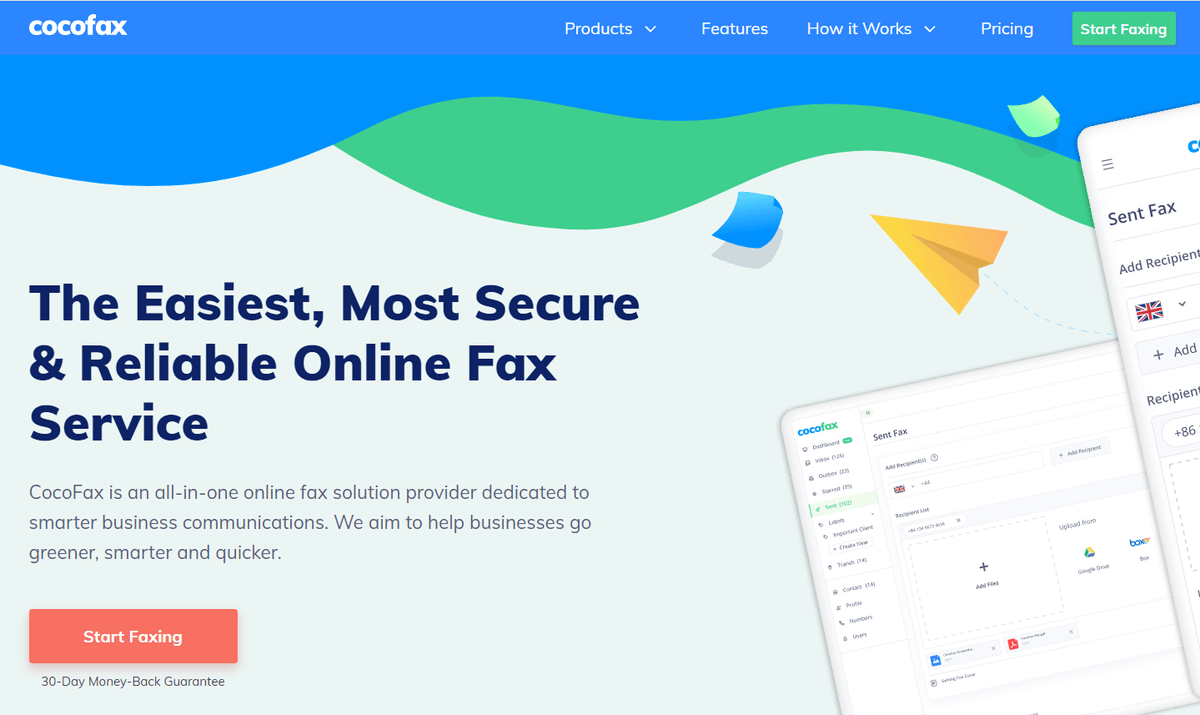
CocoFax enables you to fax from your computer, phone, tablet, etc. You can get a 30-day free trial to check out CocoFax risk-free. There are a few different subscription plans available from which you can choose.
Part 2: Why Choose CocoFax?
CocoFax is undoubtedly the best online faxing service available. With CocoFax your data is protected. They encrypt your data from end to end. So you don’t have to worry about any leakage of your confidential documents.
CocoFax also allows a sender to schedule faxes to be sent at a later time. You can also group several recipients to make matters even simpler.
CocoFax also offers:
24/7 customer support: With CocoFax, you can find help whenever you need it. CocoFax’s customer support team is skilled and taught to keep their interactions with customers friendly. There’s no need for you to worry if you are having an issue. You can start up a conversation anytime and the CocoFax team will surely come up with a solution.
Free Fax Number: When you sign up for CocoFax, you get to choose your fax number, which is completely free of cost.
Invite Team: If you use the business subscription plan, you can invite up to 5 members. For an enterprise plan, there is no limitation on the number of people that get to be on your team. Not only can you invite team members to send faxes using these plans, but you can also assign them different fax numbers.
Multiple Integrations: This has to be the best feature of CocoFax. You can access it from your web browser, you can send faxes with your email, you can download an app on your phone or install the CocoFax chrome extension. There are so many ways you can access CocoFax that it is almost overkill.
CocoFax is full of helpful features and, it is super simple to use. To get started sending faxes from your iPhone, CocoFax is hands down the best way to go.
Part 3: How To Send Faxes on Your iPhone With CocoFax
There are three ways you can go about sending or receiving faxes on your iPhone using CocoFax.
3.1 Using Your iPhone’s Internet Browser
The first thing you need to do is to open a CocoFax account. Visit their official website and click on Start Faxing. You’ll have to fill out a form with all the necessary information. When you are making this account, you’ll have to choose a fax number for yourself
Next, go to your CocoFax account’s dashboard and click on Send Fax. A new page will load. There in the ‘To’ field, enter the fax number of the recipient. You can add a cover page on your fax, which will serve as the first page of the fax. You can also add a note if you like.
Now, upload the fax document. You can upload the file from your phone or CocoFax can get the file from popular cloud storage platforms such as Google Drive, OneDrive, Box, Dropbox.
Click on ‘send fax’ and you’re done. You’ll receive a confirmation when the fax reaches its destination.
To check received faxes, from your dashboard go to the inbox folder. Your received faxes can be accessed from this folder. You can receive faxes on your phone even if it is not connected to the internet. You can check your received faxes anytime you like.
3.2 Integrate CocoFax Into Your Email
To send or receive faxes via email, you need to have a registered CocoFax account with the same email address you’ll be faxing from.
After opening a CocoFax account with that email address, to send a fax, open your email app. Click on compose an email.
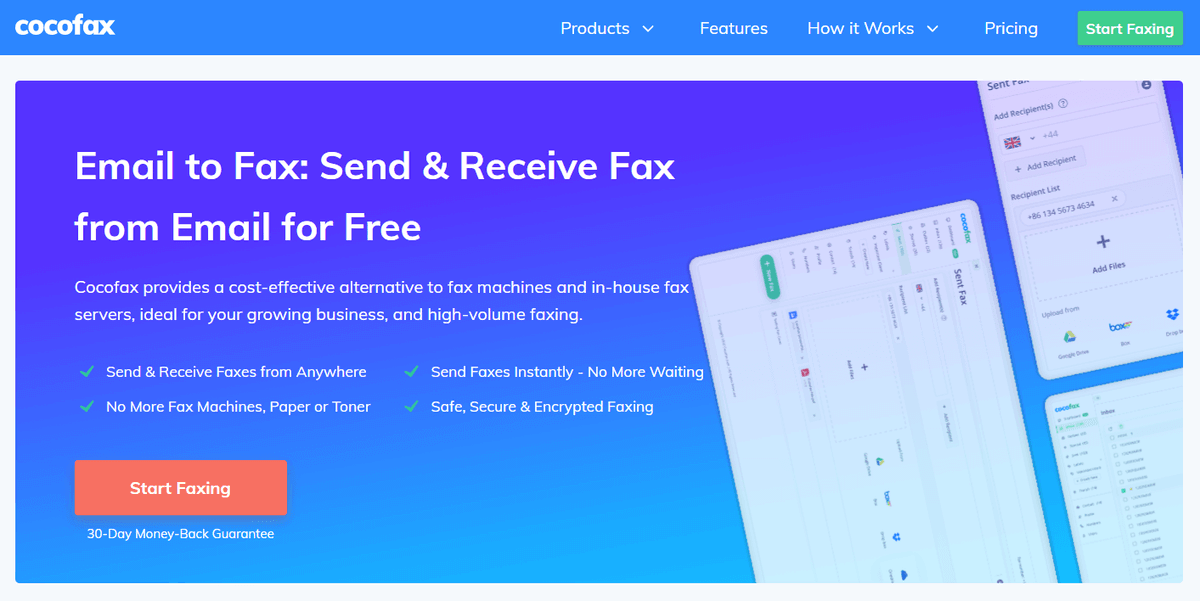
In the ‘To’ field type in the fax number of your recipient, followed by @cocofax.net. For example, ‘[email protected]’.
Any text you insert on the ‘subject’ field will be added as a note to your fax. The email body will be the first page of your fax. You can leave it empty if you don’t want to put anything on the cover page.
Add the fax file as an attachment. Make sure the file name of the document doesn’t have any special character. Hit send. When CocoFax receives your email, it’ll translate it into a fax and send it to your recipient. You’ll get a confirmation email whether your fax was successful or unsuccessful.
When you receive a fax, CocoFax will automatically send you an email with information on when the fax was sent and the fax number it came from. The fax file will be sent to your email as an attachment.
3.3 Using CocoFax iOS App to Send or Receive Fax
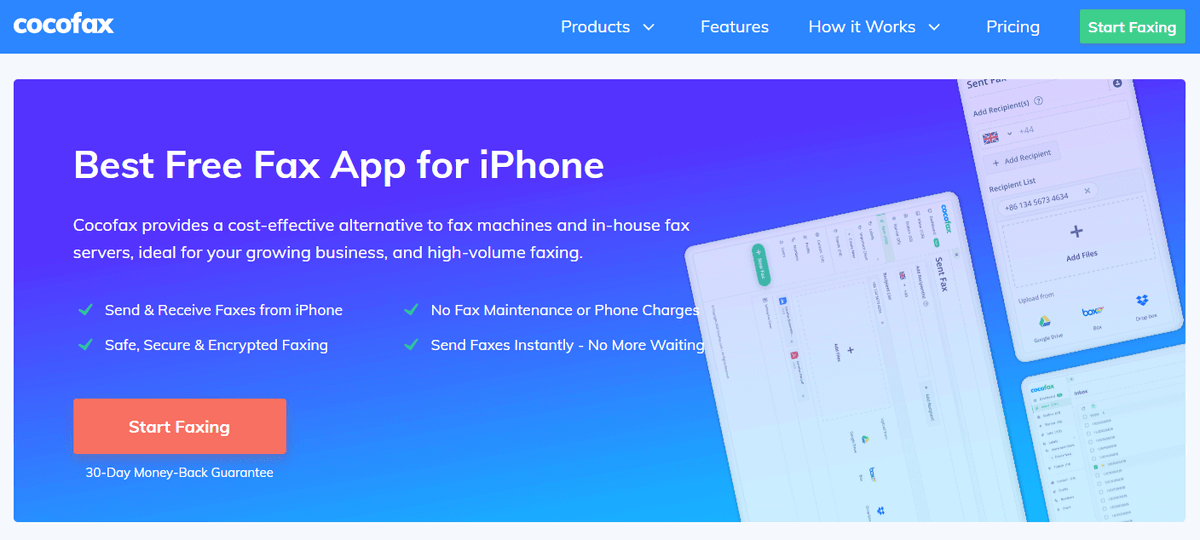
You can also download the CocoFax app on your iPhone and use that to send faxes. Follow the instructions on the app to get started on sending faxes from your phone.
Part 4: Conclusion
You can choose any of the above three methods to send and receive faxes on CocoFax. Setting up a CocoFax account takes no time at all. Navigating their dashboard or app is also easy. You shouldn’t face any issues to get started if you follow our guide to a T.

