
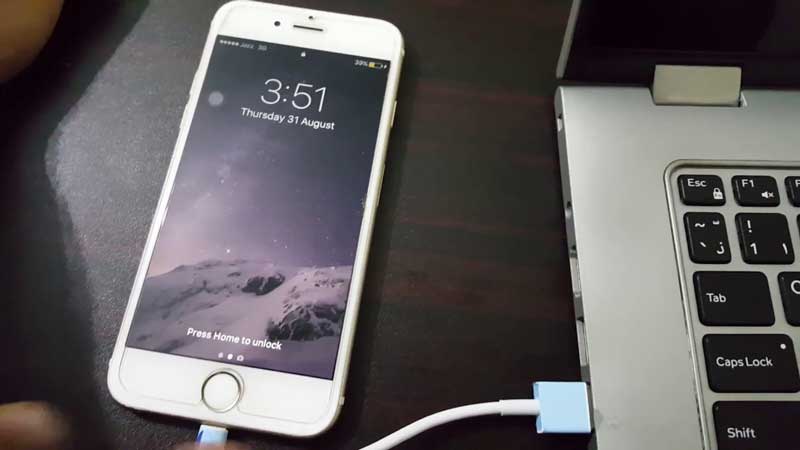
Backup iPhone is an important way to prevent data when your iPhone is lost, stolen, or has an issue. When one of these problems comes, the amount of data you can keep depends on how much data you ever backed up. Especially, if you want to upgrade iOS 16 on your iPhone, it is also a necessary step in case unexpected issue leading to data loss.
Although Apple provides iCloud to backup iPhone automatically, actually more people would like backup their iPhones on their computers. Because iCloud only provides 5GB of free storage space, which is apparently not enough for most people. And you may not trust Apple cloud, especially if you have some sensitive information on your iDevice, creating a local backup on Windows computer is a wise idea.
Table of Contents
What is the best iPhone backup tool?
iTunes is the traditional backup method Apple preferred. It can back up nearly all iPhone and iPad data to computer. But now, it is not the best choice. You can’t preview the items backup your hit the “Back Up Now” button. And it is not easy to specify a backup location on your computer, let alone backup iPhone to an external hard drive.
Luckily, FoneTool is a free software to backup iPhone. It helps you backup all content from iPhone to computer easily with the intuitive and logical interface. FoneTool also helps you to selectively backup photos, videos, messages, contacts, etc. to computer.
Compared with other tools, it comes with some advantages making it to be the best backup choice
- Fast backup: The backup speed is much faster than iTunes and other tools. It is tested that 1000 songs can be completed no more than 30 minutes.
- Easy-to-use software: Thanks to the intuitive interface, anyone can easily complete an iPhone backup within a few clicks.
- Change backup location: You can save your backup files in any folder on your computer. Besides, you can also backup iPhone to an external hard drive.
- Incremental backup: Custom Backup feature allows you to only backup newly added data on your iPhone. And it won’t delete the previous data.
How to backup entire iPhone to Windows computer
Now attach your iOS device to a Windows computer. Then we will guide you on how to backup entire or part of iPhone data separately.
- Backup entire iPhone data
Step 1. Install and open FoneTool. Choose the “Full Backup” feature.
Step 2. Click the “Full Backup” option when the program is launched.
Step 3. Here you can enable the backup encryption if you need to backup private information, including “Health” and “Keychain”. Then choose a backup location, and click “Start Backup”.
Then the backup process will start. When you need the backup files, you can run FoneTool, and choose “Full Backup” > “Full Restore”.
- Selectively and incrementally backup iPhone
The Custom Backup function allows you to only backup photos, videos, and other data on Windows computer. Here are the steps.
Step 1. On the FoneTool interface, choose “Custom Backup”.
Step 2. Click the “+” icon to select the items you need. Check the file type you need. And you can also the specific items. Then click “OK”.
Step 3. Choose a location on your computer and click “Start Backup”.
When the backup operation is complete, you can manage (locate, delete, restore) your backup files in the Backup Management.
- Next time you want to backup newly added data, just click triangle icon to have an incremental backup.
- You can view the backup content in FoneTool by clicking the eye icon.
- Clicking the pin icon could let you view the backup in Windows Explorer.
- Click Restore could let you start to view and select files as you backup iPhone. Click OK and then click Start Restoreto put everything to the target device.
Conclusion
Backup iPhone is a necessary operation to avoid data. FoneTool is a comprehensive backup tool for iPhone and iPad users. You can easily save iPhone photos, videos, contacts, messages on your computer or external hard drive.

