
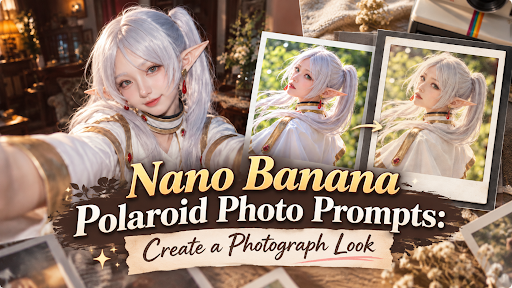
There’s usually a photo that never makes it off the phone: a good expression, an ordinary background, perhaps nothing especially impressive about the lighting. It might be exactly the right picture for these Nano Banana polaroid prompts. A white frame and a gentle change of color can give that overlooked snapshot a reason to be saved, printed or shared. But before we start, do note that the girl portrayed in the examples below is not a real person. Every picture in this article is generated entirely with Nano Banana, any similarities are purely coincidental.
Table of Contents
Table of Contents
- Start Small With Nano Banana Polaroid Prompts
- A Gemini Polaroid Prompt for the Portrait Already on the Phone
- Nano Banana Flash and That Indoor Snapshot Look
- A Travel Print Made With Nano Banana 2
- Everyday Photos Before Upgrading to Nano Banana Pro
- An AI Figure in a Little Keepsake Photo
- About Nano Banana 3 and Saving the Finished Photo
Start Small With Nano Banana Polaroid Prompts
It’s really easy to get carried away and ask the AI for everything at once, like moody vintage lighting, a totally different room, an outfit upgrade, and airbrushed skin. The problem is, by the time it’s done, the person doesn’t even look like themselves anymore. For your very first go with Nano Banana , try keeping it simple. Make your goal just changing the vibe or texture of the photo while making sure the person is still recognizable. It also helps a ton to start with a clear portrait rather than a tiny, blurry face lost in a crowd.
Getting started takes very little setup. In Gemini, sign in, attach the photo and describe the edit. Google’s help page currently limits editing uploaded images to users aged 18 or over. Save a separate copy of the original before experimenting. The following prompt gives the image a frame without asking for a new scene.
Make this look like an old-school instant photo. Keep the people, their outfits, and the background exactly as they are right now. Give the image that slightly faded, gently grainy vintage vibe, and put it inside one of those classic white frames with the thick bottom border. Show the whole photo facing straight on.
The border is part of the generated image. Asking for the complete print helps avoid clipped edges, while “facing straight ahead” discourages an angled tabletop mockup. That can come later. For now, the photograph itself deserves most of the space.
A Gemini Polaroid Prompt for the Portrait Already on the Phone
A favorite selfie doesn’t need a new expression. The slightly raised eyebrow might be the whole reason someone likes it. A Gemini polaroid prompt should say what stays before describing the lighting or background, especially when a portrait includes distinctive glasses, freckles or jewelry. AI editing can alter those details, even when keeping them was part of the request.
Redo this portrait to look like it was snapped on an instant camera. Keep the face, expression, hair, and outfit totally untouched. Give it that soft front flash look with slightly faded colors. Leave some space above the head, and drop the photo into a white frame with a larger margin at the bottom.
For this version, keep the original background unless it distracts. A bedroom wall or familiar doorway can make the picture feel personal. If a cleaner backdrop would suit it, add “replace the background with a plain cream curtain.” There’s no need to specify new clothes, makeup or a different pose just to get the instant-photo effect.
Then check the face before admiring the frame. Does the smile still have its original shape? Are both eyes recognizable? A flattering result can quietly change someone’s appearance. If that happens, return to the original photo and simplify the request. Repeatedly editing a version that’s already drifted makes the comparison harder.
Nano Banana Flash and That Indoor Snapshot Look
An evening portrait can suit a flash effect: a bright face, a slightly darker room behind it, perhaps a small shadow on the wall. “Soft flash” asks for a gentler interpretation of that look. Actual direct flash can produce quite distinct shadows, so a little contrast is useful; perfectly even lighting may feel too much like a studio portrait.
Keep this indoor photo’s composition and the person’s appearance. Add the look of a small camera flash, with a gently lit face and a darker background. Preserve skin texture. Finish with light grain and a white instant-photo frame.
A quick naming clarification: Nano Banana Flash isn’t a separate photographic effect. The original model is Gemini 2.5 Flash Image; Nano Banana 2 uses Gemini 3.1 Flash Image. The lighting comes from the instruction in the prompt.
If the face comes back too pale, “reduce the brightness on the skin” is a more useful correction than “make it more realistic.” Likewise, a room that has disappeared into black needs a little background detail restored. Choose the problem that’s actually visible. Warmth can be adjusted afterward, and it doesn’t need to turn every white shirt cream.
A Travel Print Made With Nano Banana 2
The person may be looking at the camera, but the harbor behind them is why the picture exists. Travel edits need to protect that setting. Nano Banana 2 is available free in Gemini, subject to limits, so a simple edit can be tried before considering a subscription. Name any landmark that must remain visible, including small ones such as a tiled doorway or a boat near the shore.
Make this picture look like a retro instant print. Keep the people, their outfits, and the background exactly how they are. Give it slightly faded colors, a little bit of grain, and that classic white border with the thicker bottom edge. Just show the whole print facing directly forward.
Daylight is suitable for this style. There’s no reason to force a nighttime flash effect onto a sunny beach. Start with the light already in the photograph and choose one small adjustment. These combinations offer a few directions without requiring a different scene.
| Starting photo | Detail worth protecting | Finish to request |
| Beach portrait | The shoreline and horizon | Slightly faded blues |
| Old town street | Doors and building shapes | Gentle warmth |
| Mountain viewpoint | The ridge and clouds | Soft contrast |
| Rainy city stop | Reflections on the pavement | Cooler, subdued color |
Watch the crop, though. A square picture area can remove the landmark sitting near the edge of a wide photograph. Ask Gemini to fit the existing scene inside the frame. Generating extra scenery to fill a new shape may look attractive, but it changes the place being remembered.
Everyday Photos Before Upgrading to Nano Banana Pro
A quiet afternoon can make a lovely print. Someone reading on the sofa, a pet occupying the good chair, an abandoned pair of shoes by the door. These photos already have enough going on. The small messes often explain what was happening, so clearing every surface can take away part of their appeal.
Turn this regular picture into a classic instant photo. Make sure the people, stuff, and room layout stay exactly the same. Keep that nice natural window light, soften up the contrast a bit, and drop a classic white Polaroid-style frame around it with the thicker bottom edge. Just leave the border completely blank.
Make sure to double-check the little details when it’s done. Sometimes a book cover randomly changes or a chair is suddenly missing a leg. If it’s acting up and needs another pass, paid Gemini Mixboard users can always hit the “Redo with Pro” button to run it through Nano Banana Pro when available. It offers another generation to compare, rather than a guarantee that every object will survive perfectly.
A clean border is enough here. Scratches and brown stains suggest an old, damaged print, and a photo from Sunday afternoon doesn’t necessarily need that history attached to it. Anyone who wants an aged-paper effect can request it separately after saving a clean version.
An AI Figure in a Little Keepsake Photo
For a fun twist, try making your AI figure look like it was captured in an old-school Polaroid. You can start with a drawing or reference photo of your character. Just ask Nano Banana to turn them into a physical PVC figure. Giving them a little display base really helps sell the illusion that it’s a real toy, which is huge if your character otherwise just looks like a normal everyday person.
Tell Nano Banana to make it a “painted PVC figure on a display base” while keeping their original outfit, face, and pose. Then, ask for it to look like a Polaroid picture taken with a soft flash, complete with that classic white border. Just make sure to leave some breathing room around the toy in the frame. If the Polaroid crops out the base, it completely ruins the miniature scale.
Also, don’t clutter the shelf with random props—it just distracts from your character. Just one recognizable thing, like a normal-sized book, is plenty to show how small the figure is. If you prefer the 2D look, you can tell it to “keep the original drawing style” and just ask for the Polaroid frame. It’s a great trick if you really love the linework. Just double-check the eyes and tiny outfit details before you pick your favorite!
About Nano Banana 3 and Saving the Finished Photo
Google’s documentation checked on October 29, 2026, lists image models including 2.1, 2, Pro and 2 Lite, but no official Nano Banana 3. There’s no need to wait for that name to appear to try these prompts. The current tools already support editing an uploaded photograph.
Before downloading, open the result large enough to inspect it. The small chat preview can hide a changed earring or a crooked frame. A short check helps:
- Compare the face with the original.
- Check hands and small accessories.
- Make sure the whole border is visible.
- Look for scenery lost to the crop.
- Reduce grain if it hides useful detail.
Save the version that works before requesting another. Gemini’s website offers “Download full size” for saving the image directly. Keep the original beside it, especially for personal photographs. A frame can be replaced later; the expression caught in that original photo may be harder to come by.

